1. Copy the link
Open the public presentation on SlideShare and copy its full URL.
Paste a public SlideShare presentation link into the downloader. It checks every slide, then creates a PDF or image-based PPTX in your browser.
Fast and easy · Free online · No login required
Our own English sample · 3 slides · PDF or image-based PPTX
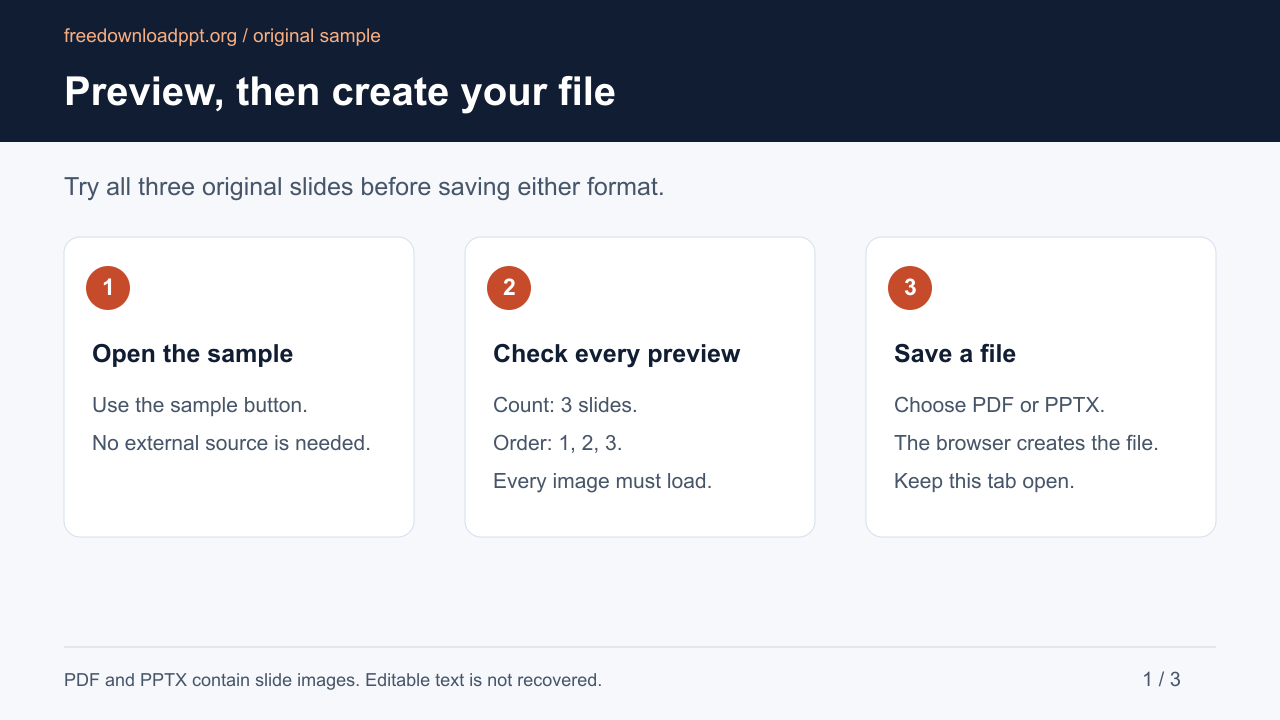
These three slides were created for this site. Open the sample, check all three previews, and use the same file generator to save a PDF or PPTX on your device.
PDF contains one slide image per page. PPTX contains one image per slide; text, charts and notes are not editable. Reading a SlideShare link also depends on its public page and images being available.
Our own English sample · 3 slides · PDF or image-based PPTXIf a public presentation fails, tell us your browser, chosen format and the step that failed through Contact. The About page explains how the tool and its release checks work. How we maintain the tool · Report a problem
Start on the official SlideShare website, open a public presentation, then return to this downloader to check every slide before creating your file.
Open the public presentation on SlideShare and copy its full URL.
Paste the link above. We show the title, slide count, and preview before creating a file.
Create a PDF for reading or an image-based PPTX for presentation apps.
The same three-part flow works on desktop, phone, and tablet: copy a public presentation URL, let this page verify every slide, then choose the file format. The controls stay in the browser, so there is no software to install.
A desktop browser is the most reliable choice for long presentations because it usually has more memory available for creating the final file.
Use a current mobile browser and keep this tab open while previews and the file are being prepared. Saving behavior depends on your browser and device settings.
Large presentations can require substantial device memory. If file creation fails on a phone, keep the verified preview, try PDF, or repeat the download in a desktop browser.
The source must be a supported SlideShare presentation that is viewable without signing in.
Every slide must load in the correct order before either download option becomes available.
The PPTX contains one slide image per page. It is not the uploader's original editable file.
The PDF or PPTX is assembled in your browser and is not stored by this site.
A quick source and preview check prevents most wrong-file and incomplete-file problems. Use these four checks before creating the PDF or PPTX.
Use the URL of the individual public presentation. Profile pages, search pages, embeds, and unrelated SlideShare pages are not accepted as presentation links.
Open the source page without relying on a private session. This downloader does not use your SlideShare account and cannot process content that requires sign-in or special access.
Match the displayed title and total slide count to the source. Download buttons stay hidden until every expected slide loads in the correct order.
Use PDF for reading, printing, or sharing a fixed document. Choose PPTX only when you need one slide image per page in PowerPoint or a compatible presentation app.
An error usually comes from the link, source availability, an incomplete preview, the 100-slide limit, or the device running out of resources. The page keeps the safest recovery action next to each failure.
Copy the complete HTTPS presentation URL from SlideShare. Short text, a profile URL, a search result, or another website cannot be processed.
Open the source page and confirm it still exists and is publicly viewable. The presentation may be restricted, removed, temporarily limited, or use a page structure that is not supported.
Use Retry slide previews. The downloader will not show PDF or PPTX buttons while any expected slide is missing, so an incomplete file is not presented as a normal success.
The current limit is 100 slides per presentation. Choose a smaller public presentation; the limit is checked before the normal download flow continues.
Your verified preview remains available. Retry the same format, switch between PDF and PPTX, or use a desktop browser if the current device has limited memory.
Yes. This online tool lets you create a PDF or image-based PPTX free of charge. Fair-use limits may apply to protect service availability.
No account is required on this site. The source presentation must be publicly viewable without signing in.
Yes. Review every slide first, then choose Download PPTX or Download PDF. The PPTX is image-based rather than the original editable file.
No. We do not persist the links you submit, slide previews, or generated files.
No. It only processes supported presentations that are publicly viewable without signing in.
No. It is a new PPTX with one slide image per page. It does not restore editable text, animation, notes, or the original master.
The flow is designed to be quick: paste a link, wait for the complete preview, then choose a format. Actual processing time depends on the slide count, source response, connection, and device.
It is a web tool that reads a supported public SlideShare presentation, checks its slide previews, and creates a separate file for offline use. This downloader produces PDF or an image-based PPTX; it does not retrieve the uploader's original editable file.
Yes, in a current browser. Keep the page open until the file is ready. Very large presentations may work better on a desktop device with more available memory.
The preview is the completeness check. PDF and PPTX buttons appear only after the expected slide count, loaded slide count, and page order agree.
Open the source page, confirm it is a public presentation, then copy the complete HTTPS URL again. If the source is available but the error remains, retry later because SlideShare may be limiting requests or changing the page response.
No. The current product limit is 100 slides per presentation, and larger sources are stopped before the normal file-generation flow.
Use SlideShare's own Download now option whenever it is available and fits your needs. Use this independent downloader when you already have a supported public URL and need a preview-checked PDF or image-based PPTX.
Copyright and permitted uses depend on the content, its license, and your jurisdiction. Download only material you own or have permission to use.
Copy the full presentation URL from SlideShare, paste it into the downloader, and review the complete preview. The PDF and PPTX choices will appear only after every expected slide is ready.
Paste a SlideShare link